
Help Page
The Help page is a complete support page that Helin hosts for you. There's no code to install: you turn it on, fill in a few fields, and you get a link you can share anywhere. It's a chat-first front door to your documentation. Instead of making people browse a category tree and guess which article answers their question, they just ask.
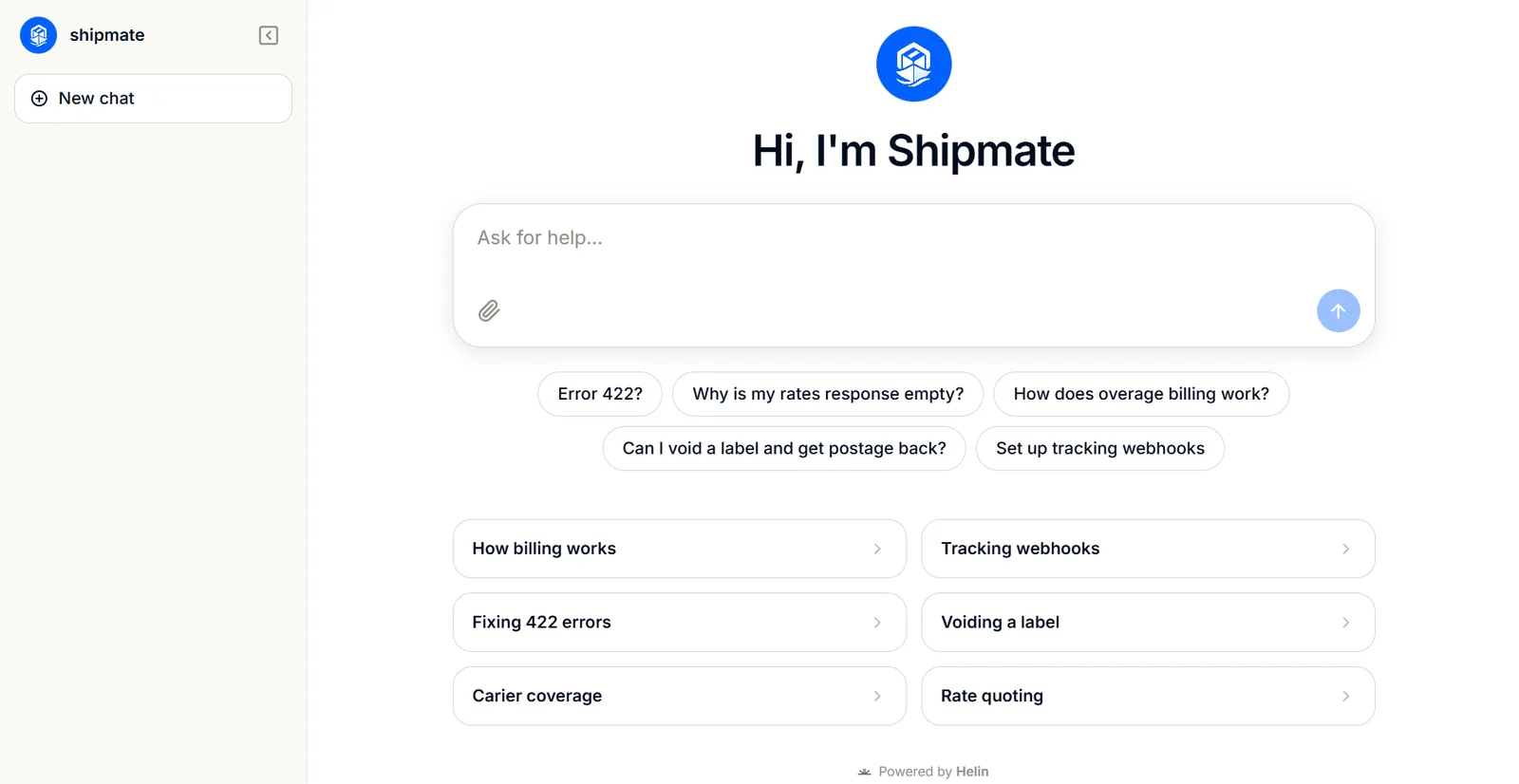
What it is
A page at your own Helin address that shows:
- Your logo and page title at the top
- A welcome message
- A big question box
- Starter questions: cards with the questions people ask most, so a lost visitor has somewhere to click
- Link cards: the pages people still need, like docs home, status page, pricing, contact
A visitor types a question, and your agent answers from the same knowledge base your website widget uses. Your docs stay the source of truth. This is just a faster way in.
When to use it
| Use the Help page when | Use the website widget instead when |
|---|---|
| You want a link to share, in emails, your footer, a support ticket auto-reply | You want support available on every page of your site |
| You can't install code on your site (no plan access, no dev time) | You control your site's HTML |
| You want a dedicated "Help" destination people can bookmark | Support should follow the visitor as they browse |
They work well together. Run the website widget on your site and link to the Help page from your email signature, your footer, and your support auto-replies.
Turn it on
The Help page is off by default. While it's off, its address returns a not-found page, so nobody can stumble onto a half-configured page.
- Open your agent in the Helin dashboard.
- Click Channels in the left sidebar.
- On the Help page card, click Manage.
- On the Overview tab, switch Enable help page on.
- Click Save.
The card on the Channels page now shows a green Live badge instead of Off.
Your address
On the Overview tab you'll find Public address:
https://app.gethelin.com/help/YOUR_AGENT_KEYClick Copy to copy it. This is the link you share.
Once the page is live, the Open page button at the top-right of the editor opens it in a new tab.
Set it up
The editor has three tabs on the left, with a live preview on the right that updates as you type. Nothing is published until you click Save.
Overview tab
| Field | What it does |
|---|---|
| Enable help page | Turns the page on and off. Off means the address returns not-found. |
| Public address | Your page's URL. Read-only, copy it from here. |
| Page title | Shown in the page header and as the browser tab title. Defaults to your agent's name. |
Content tab
This is where you decide what a visitor sees before they type anything.
| Field | What it does |
|---|---|
| Welcome message | The headline at the top of the page. Defaults to "Hi, I'm [agent name]". |
| Message placeholder | The grey hint text in the question box. Defaults to "Ask a question...". |
| Starter questions | Cards shown under the welcome. Click + Add starter question for each one. |
| Link cards | Cards shown under the starter questions, each with a Label and a URL. Click + Add link. |
Style tab
| Field | What it does |
|---|---|
| Avatar | Upload your logo. It appears in the sidebar, above the welcome message, and as the browser tab icon. Square images work best: JPG, PNG, SVG, or WebP, up to 1 MB. Without one, Helin's mark is used. |
| Accent color | Your brand color. Used for the avatar background, the send button, and the visitor's message bubbles. |
Writing good starter questions
Starter questions are the single highest-impact thing on this page. They replace a docs category menu, and they set expectations about what the agent can actually answer.
Do
- Use the exact wording customers use. Pull them from your real support inbox.
- Make them specific: "How do I reset my password?" beats "Account help".
- Cover your highest-volume questions first, the ones that eat the most support time.
- Write them as questions, not topics. The visitor should recognise their own problem.
Don't
- Ask things your knowledge base can't answer. If the agent has no billing docs, don't put a billing question on the page: you're advertising a dead end.
- Duplicate your link cards. Starter questions are for things the agent answers; link cards are for pages the visitor needs to visit.
Good examples
How do I reset my password?
Why is my order still pending?
How do I add a teammate to my account?
What's included in the Free plan?
How do I cancel my subscription?
Choosing link cards
Link cards are your escape hatches: the places a visitor still needs to go when a chat answer isn't what they want.
Common ones:
- Documentation: your docs home
- Status: your status page, for "is it down?" moments
- Pricing: your pricing page
- Contact us: your support email or contact form
Use full URLs including https://.
Good to know
The page isn't indexed by search engines
Helin sets noindex on every Help page, deliberately: the page is empty until someone asks something, so there's nothing useful to crawl, and it would compete in search results with your own docs, the opposite of what you want. Keep your docs as the thing Google finds; use the Help page as the thing you link to.
Answers come from the same knowledge base as your widget
Add a document in Data Sources and it's live on every channel at once. There's no separate Help page knowledge base to maintain.
Conversations land in Activity
Everything asked on the Help page shows up in your agent's Activity tab, alongside widget and iframe conversations.
Turning it off is instant
Switch Enable help page off and save, and the address goes back to returning not-found immediately. Your configuration is kept, so you can turn it back on later without redoing anything.
Troubleshooting
The link shows "not found"
- Check Enable help page is switched on and you clicked Save. Toggling alone doesn't publish.
- Check you copied the whole address, including the full agent key at the end.
- Confirm you're using the address from this agent's editor. Each agent has a different key.
My logo doesn't appear
Re-upload it under Avatar on the Style tab, then save. It must be a JPG, PNG, SVG, or WebP under 1 MB: larger files are rejected. If the browser tab icon still looks stale, that's browser caching, so hard-refresh the page.
The agent says it doesn't know something it should
The Help page answers strictly from your knowledge base and won't guess. Open Data Sources and check that the relevant document shows Ready. A source that's still processing or has errored isn't being used yet.
Starter questions give weak answers
That's a knowledge gap, not a page problem. Ask the same question in the Playground to see what the agent has to work with, then add the missing content in Data Sources.
Changes don't show up
Click Save. The preview on the right updates as you type, but the live page only changes once you save.
Frequently asked
Do I need to install anything?
No. Helin hosts the page. Turn it on and share the link.
Can I use my own domain?
Not yet. You can redirect a path on your own site to it, see Linking from a custom URL.
Can I have more than one Help page?
Yes, one per agent. Each agent has its own address, branding, and knowledge base.
Does it cost extra?
No. Conversations count toward your plan's monthly reply limit like any other channel.
Can I use the Help page and the website widget at the same time?
Yes, and most teams should. They share one agent, one knowledge base, and one Activity log.
Is it mobile-friendly?
Yes. The page is responsive and works on phones without any setup.